The café logo arrived with a white box
The night before a neighborhood café’s weekend market, the owner sent me a Canva logo for the menu board. On the editor canvas, the mark seemed to float cleanly over the dark green mockup. On the printer’s proof, though, a bright white rectangle sat behind it. “Can we just erase the white?” the owner asked, already imagining a second redesign and another late night.
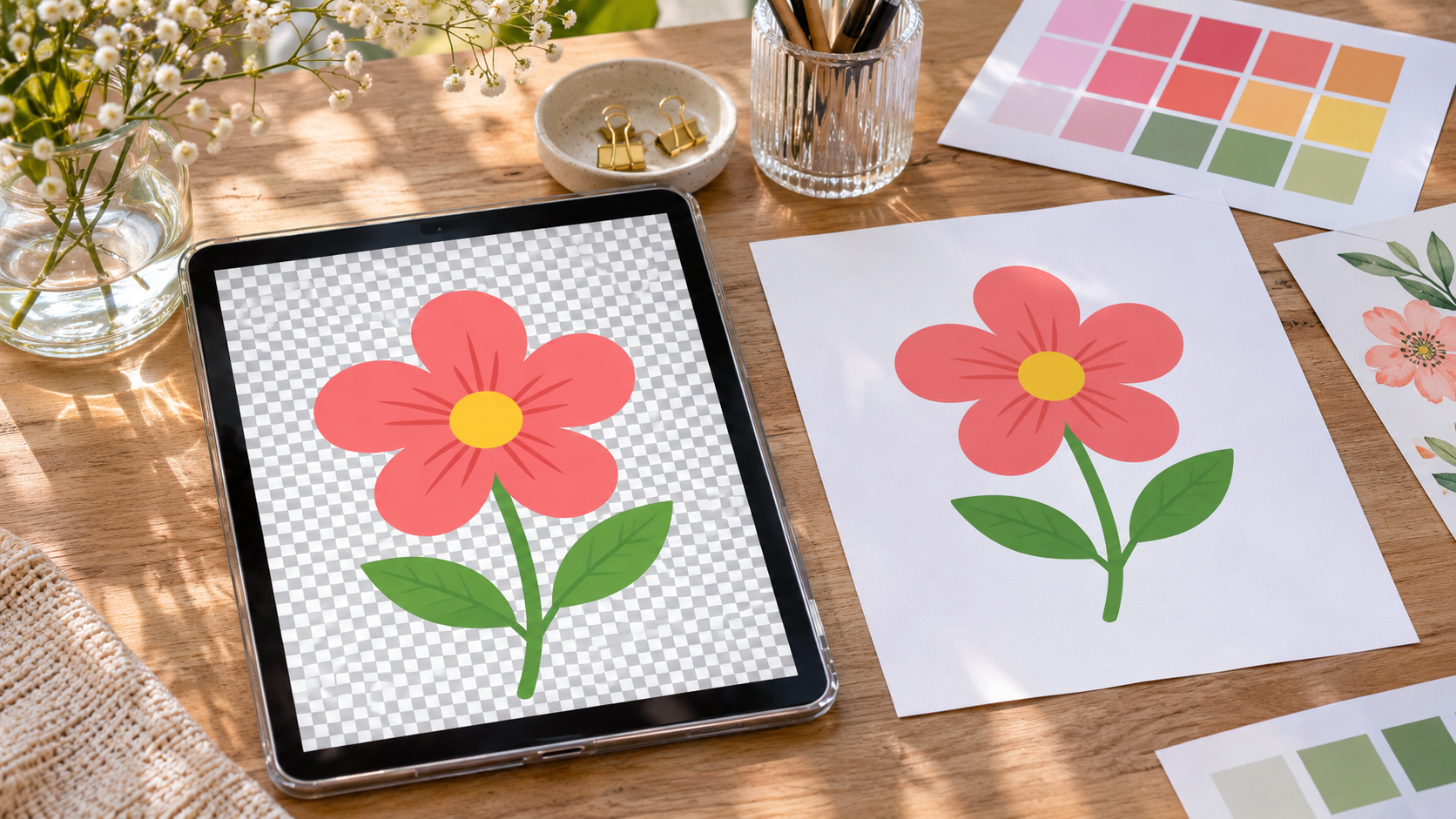
I almost blamed the printer. Then I noticed the original design had a white page behind the logo, and the exported file had been opened in a preview that itself used white. Those are two different clues, and neither alone proves whether the pixels are transparent. A checkerboard can show transparency in an editor; a white-looking preview can hide it. The useful question is what the downloaded file actually contains and which background the final design should have.
Canva’s help guidance says PNG supports transparency, and its transparent-background option is also available for WebP. The option is limited to eligible paid plans, and the available controls can depend on the design type. A PNG file by itself does not guarantee a transparent canvas: the design can still include a white rectangle or background object. So I stopped rebuilding the logo and checked the design and download settings in order.
Separate the design background from the export setting
Start in the editor with the page selected but no foreground element selected. If the page background is white, that may be a canvas color rather than a separate object. If a white shape covers the page, it is an element and must be hidden or removed when a transparent result is intended. Removing a background object changes the design; switching on transparent export changes how the page background is represented in the downloaded file. They solve related but different problems.
Next, inspect the layers or select around the edges of the artwork. A white rectangle may be grouped with the logo, placed behind it, or included inside an uploaded image. If the white is baked into a JPEG, deleting a Canva page background will not remove it. The image itself needs an appropriate background-removal edit, or a source file that already has alpha transparency. Avoid erasing around a logo by hand until you know which case you have; rough cutouts can damage thin strokes, shadows, and small lettering.
Finally, open Share, then Download, and choose PNG or WebP if the output needs alpha transparency. Check the Transparent background option before exporting. Canva’s current help page lists the feature for Canva Pro, Teams, Business, Education, and Nonprofits plans; availability may vary by plan or account. If you do not see the toggle, verify the account and design type before assuming the project is broken. Canva says the option is unavailable in some contexts, including Canva Docs, and the download format must support it.
The menu can also change the page selection. A multi-page design may export every page when you only wanted the logo page. Choose the intended page, confirm the scale and quality, and give the file a fresh name so an older white-background download is not mistaken for the new one. Save the setting only if you want it reused for later exports; a saved preference can affect future downloads and should not be treated as proof that the current file used it.
| What you see | Likely place to check | Practical next step |
|---|---|---|
| White page behind the logo | Page background or a full-page shape | Hide the background only if the design calls for transparency |
| White box inside the logo image | Uploaded image pixels | Use a clean source or a suitable background-removal edit |
| PNG still has a white page | Transparent-background export toggle | Recheck the download options and export the intended page |
| Toggle is missing | Plan, format, or design type | Confirm Canva’s current eligibility and use a supported workflow |
| White preview but unknown file | Image viewer background | Place the file over a colored test page to inspect its edges |
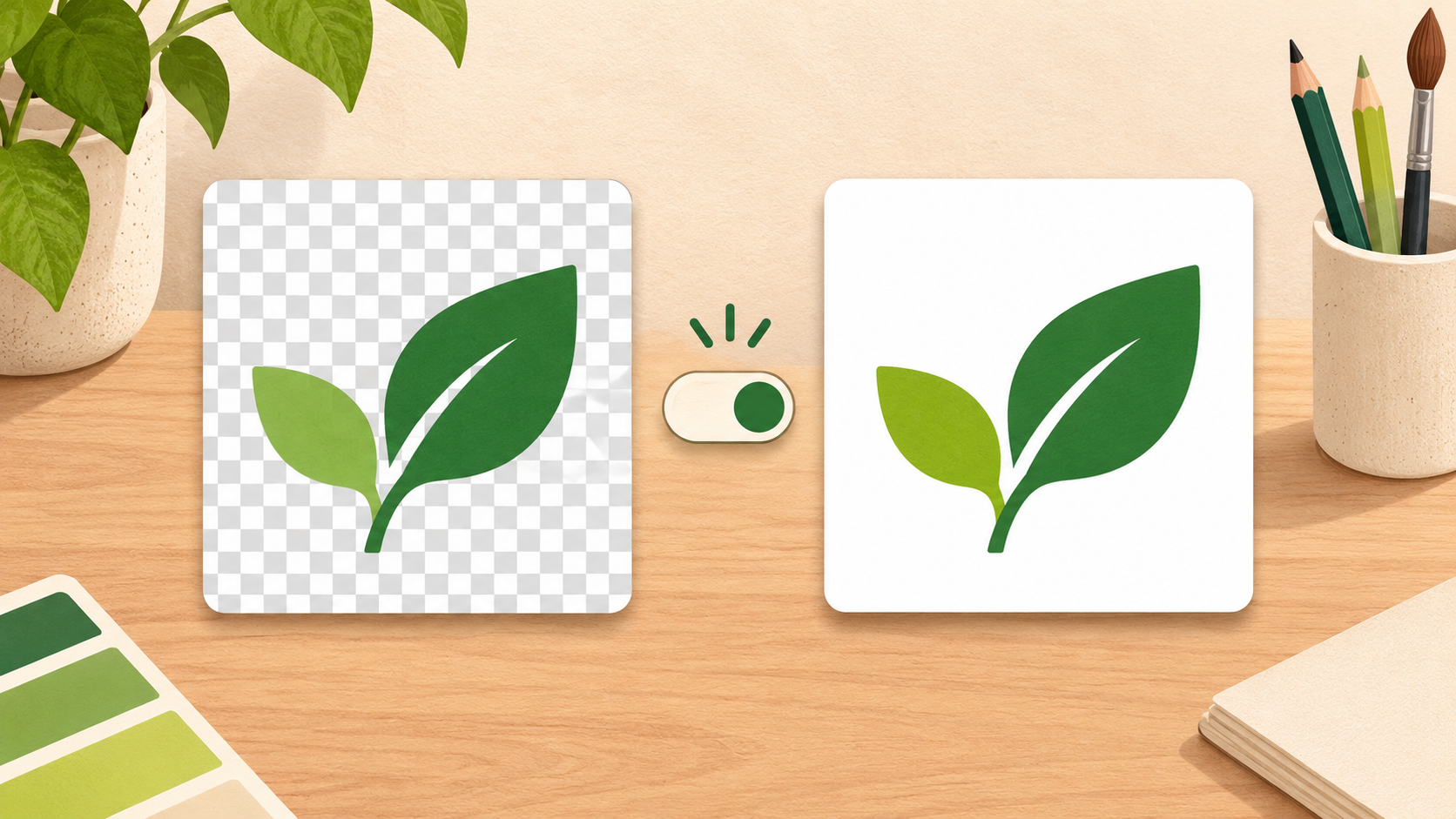
Verify the file before sending it to print or web
A quick visual check can prevent a second round of work. Open the downloaded file in a design app or place it on a temporary dark and light background. If the page color shows through while the logo edges stay clean, the background is likely transparent. If a white rectangle remains on both test backgrounds, the white belongs to the image or design. Do not judge transparency from a white preview alone, and do not overwrite the source file while testing.
For a café menu board, transparent PNG is a sensible choice when the artwork needs crisp edges and a transparent background. WebP can also support transparency and may be useful for web delivery, but check that the destination platform accepts it. JPG does not preserve alpha transparency, so it is a poor choice when the logo must sit over changing colors. For printing, ask the print provider which file type and color profile they accept; a transparent PNG is not automatically the right production file for every print workflow.
Before delivery, compare the exported dimensions with the actual placement. A tiny logo enlarged across a banner can look soft even when its background is transparent. Export at a size appropriate to the final use, while keeping the original editable design intact. If the file is for a web page, review it at the size it will appear; if it is for a sign, confirm the printer’s requested dimensions and format instead of guessing from the editor zoom.
Keep one clear source of truth. Name the editable design as the working master, and name each export with its use and date, such as cafe-logo-menu-2026-11-10.png. If a white-background version is still needed for a document, keep it as a separate export rather than toggling backgrounds back and forth in the only source. This makes it easier for a teammate to choose the right asset without reopening Canva to guess.
If transparency is essential but the option is unavailable on the account, do not promise that another format or a renamed file will create it. Check Canva’s official plan and format guidance, then choose an available design tool or workflow that can produce an alpha channel. Keep any paid-plan decision with the account owner. The design itself can still be prepared in Canva while the final transparent export is made through an approved tool, provided the file remains faithful to the approved artwork.
A handoff note can save the next person from repeating the same diagnosis. Include the intended background, the selected page number, the format, and whether transparency was confirmed over a test color. Do not write “transparent” only because the editor showed a checkerboard; the downloaded file is the deliverable that matters. If a vendor requests a flattened image on a specific background, provide that version separately and label it clearly. The café owner wanted the logo over both a dark chalkboard panel and a cream paper menu, so a single white-background file could not serve both layouts. Keeping the transparent master and two labeled placement proofs made the choice obvious without altering the approved artwork.
When the export still looks wrong, change one variable at a time. First check whether the white is a page object, then whether the image itself contains it, then whether the selected output format and toggle support alpha. Export a new copy after each correction and compare it against the same colored test background. This simple sequence makes the result reproducible and prevents a hurried edit from damaging the original.
Frequently asked questions
Why does my Canva PNG look white even when I enabled transparency?
The preview may use white as its display background, or a white shape may be part of the design or uploaded image. Place the downloaded file over a colored background to distinguish the preview from the actual pixels.
Can I save a transparent Canva design as JPG?
JPG does not preserve transparent pixels. Use a supported format such as PNG or WebP when the destination needs transparency, and confirm that the receiving platform accepts that format.
Is transparent background available on every Canva account?
Canva’s current help page lists the feature for eligible paid plans and notes design-type limitations. Check the current account and download menu; do not assume every plan or document type has the same controls.
For the latest format and plan details, see Canva’s download file type guide and its transparent background instructions.
Quick takeaway Check the page, image pixels, file format, and transparent-background toggle separately. Test the downloaded asset over color before sending the final file.